Roles & permissions
Roles and permissions in your CRM. Everyone has what their job needs.
Owner, Admin, Member and Viewer come ready to use. You build custom roles like Setter or Back Office from 74 individual permissions. And nobody on the team can give themselves or others more rights than their own level allows.
No setup fee · cancel anytime
- 74
- individual permissions you switch on or off
- 26
- areas, from leads and calls to billing
- 4
- default roles: Owner, Admin, Member and Viewer
- 4
- templates as a starting point for custom roles
Why “everyone is admin” doesn't last in sales
01
Everyone can do everything
A new caller deletes leads by accident, changes the script or rebuilds the workflow. Not out of malice, just because the button was there.
02
Or nobody can do enough
Read-only can't make calls. Whoever is supposed to call needs leads, scripts and lists, but not billing and not API keys.
03
Rights pile up over time
Quickly made admin for one task, then forgotten. Six months later nobody knows who can do what.
Roles in one minute
Create a role, set permissions, assign a colleague: a run in the Coldfire demo workspace (German voice-over, English subtitles).
All companies, people and numbers shown are demo data.
How it works
- 1
Pick or create a role
Under Settings → Roles you see Owner, Admin, Member and Viewer. “Create Role” adds your own, such as Setter.
- 2
Set permissions
Switch permissions one by one or a whole area at once. Or start from a template and adjust it.
- 3
Assign
Under Settings → Team you give every member their role, and new colleagues get theirs right in the invite.
- 4
Adjust when things change
Change a role's permissions and Coldfire reloads them for every member with that role, no new login needed.
What roles do for you
Four default roles
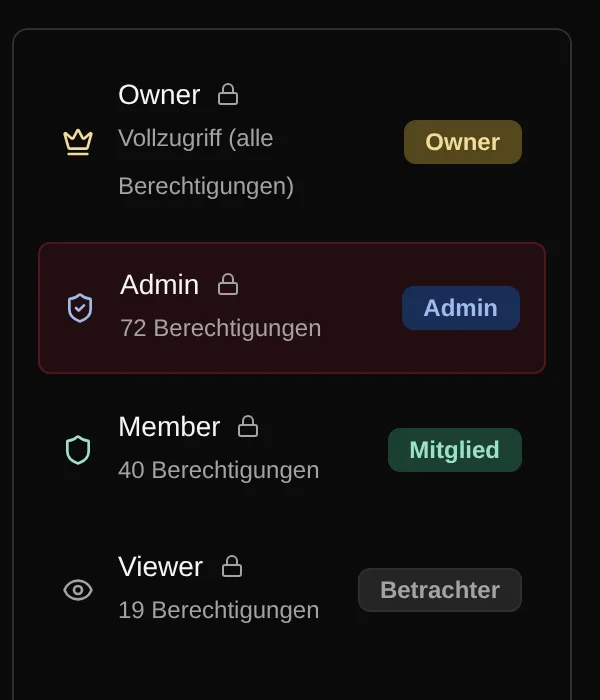
Owner has every permission and can't be changed. Admin runs the team, Members make calls and maintain their leads, Viewers only look. You can adjust the permissions of Admin, Member and Viewer; Coldfire then marks the role as customized.
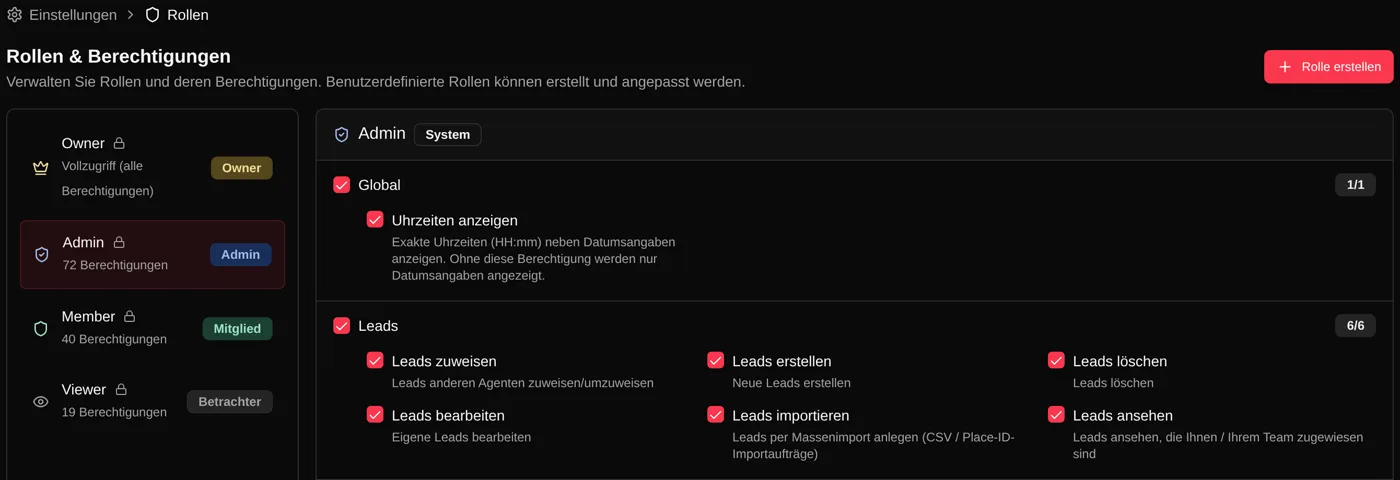
74 permissions in 26 areas
Leads, calls, emails, tasks, lists, phone scripts, custom fields, workflows, dashboards, team, settings and more. Each area shows how many of its permissions are active, and one click switches the whole area on or off.
Your own calls or the team's
With “View Team Data” someone sees every colleague's calls. Without it, call history shows only their own calls. So the team lead looks into every conversation, the setter into theirs.

Custom roles from templates
Create a role like Setter, Team lead or Back Office and start empty or from a template such as “Sales (Setter)”, “Back Office” or “Read Only”. Coldfire only takes over the permissions that exist in your workspace.
Fine-grained rights around calls
Listening to recordings, listening to customer audio and live listening are separate permissions. Without customer audio, Coldfire only plays the caller's track in recordings. Without “View Times”, someone only sees dates.
Nobody grants themselves more
Roles have a ranking. Nobody assigns a role at or above their own level, and nobody edits colleagues at or above their level. Custom roles always sit below Admin. Nobody can suspend the Owner, and only the Owner can transfer ownership.
A record of who changed what
Creating, changing and deleting roles goes into the activity log, with the added and removed permissions for every change. In the team area you see what each member did recently.
Deleting roles without gaps
You can only delete a custom role once no member is assigned to it. So nobody is suddenly left without permissions. The four default roles always stay.
Who it's for
Team leads
Setters call and maintain their leads, you build lists, scripts and workflows. Everyone has the permissions their job needs.
Owners and managing directors
In the default roles, billing is Owner-only, API keys and telephony are Owner and Admin. Who has which role, you see in the team area.
Growing teams
Invite new colleagues with the right role. When a job changes, you switch the role instead of flipping twenty individual permissions.
Everyone is admin or roles in Coldfire
| Everyone is admin | With roles in Coldfire | |
|---|---|---|
| Change the script | anyone | whoever has “Manage Phone Scripts” |
| Colleagues' calls | everyone sees everything | only with “View Team Data” |
| Billing | anyone | Owner only in the default roles |
| Assigning roles | anyone to anyone | only below your own level |
| Customer audio in recordings | audible to everyone | a separate permission |
| Who changed what? | nobody knows | it's in the activity log |
Questions about roles and permissions
Try Coldfire free for 14 days.
Import your leads, connect your phone line, make the first call. Cancel anytime.
