Workflows
Workflows for cold calling. Every call triggers the next step.
You decide once what happens after which call. Coldfire reads the documentation and does the rest: email to the decision-maker, follow-up at the time they named, meeting, contact, status. Built on a canvas, no code.
No setup fee · cancel anytime
- 10
- actions, from email to webhook
- 5
- triggers, from documented call to field change
- 20 s
- from hang-up until documentation and workflows are done, at the median
- 30 days
- of execution history, step by step
Why follow-ups slip
01
Everyone does it differently
One rep sends the material right away, another tomorrow, a third not at all. How well you follow up depends on the caller, not the process.
02
Clicking instead of calling
Find the template, copy the address, create the task, set the status. A few minutes per call, and after forty calls the afternoon is gone.
03
Automation that never heard the call
Automations outside the CRM don't know what was said on the call. They wait for a status someone first has to set by hand.
Workflows in one minute
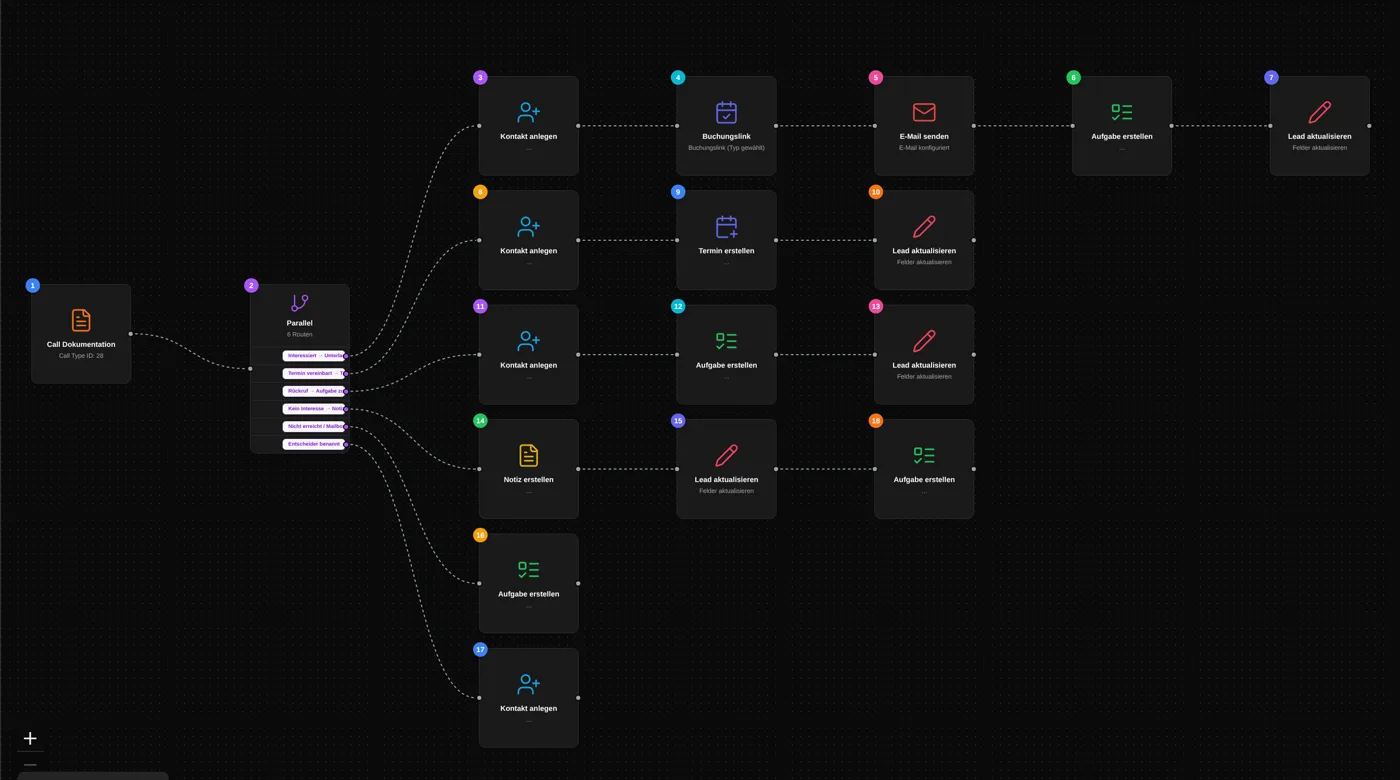
One workflow, three calls, three paths: one run in the Coldfire demo workspace.
All companies, people and numbers shown are demo data.
How it works
- 1
Pick a trigger
Usually “Call Documentation Created”. If you like, only for one call type or only for calls from lists, from follow-ups or made by hand.
- 2
Branch
A router splits by call outcome, such as interested, meeting, callback, not interested. Each condition checks a field from the documentation.
- 3
Add actions
On each branch you add the matching steps: send email, create task, create meeting, update lead.
- 4
Switch it on
Activate the workflow and start calling. It runs by itself after every matching call, and the history shows every run.
What workflows do for you
Triggered by the call itself
The key trigger is the finished call documentation. The workflow knows the summary, every field the AI filled, the call duration and the lead's fields. Nobody has to click a status first for something to happen.
Every run traceable
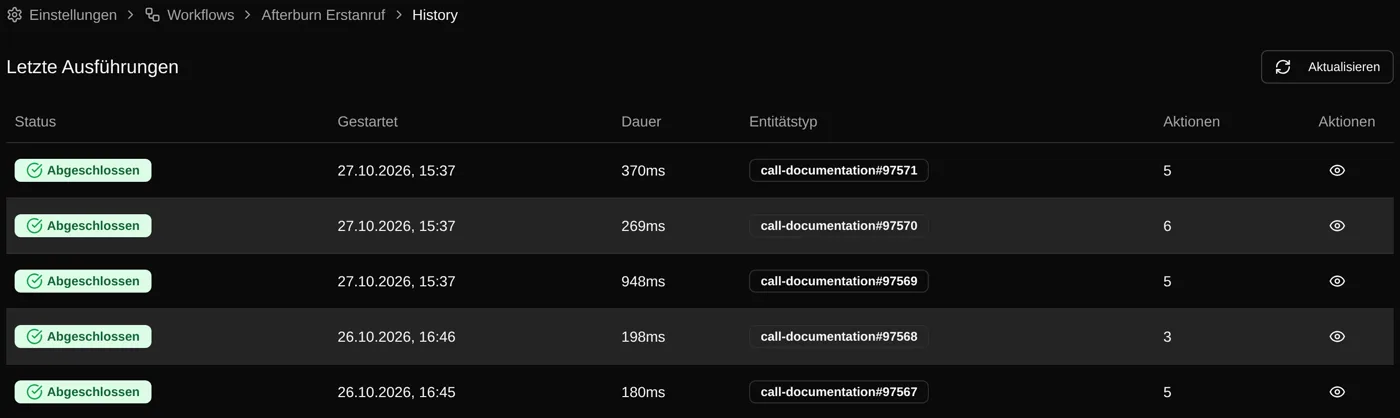
The execution history shows every run of the last 30 days, with inputs, outputs, timing and errors for each step. If one step fails, the others still run.
Conditions the way you think
Routers and filters check fields with “equals”, “contains”, “greater than”, “is empty” and more, combined with AND or OR. A router takes the first matching path or all matching ones, plus a path for everything else.
Emails from your mailbox
The email goes out from the caller's mailbox, with template, signature and a personal salutation. Optionally scheduled, for example for the next morning. Recipients are the lead, their contacts or your team.
Tasks with a real due date
Due in a few hours or days, at a fixed time, or exactly when the lead wants to be called back. Assigned to the caller or the lead's owner, with tags.
Meetings and booking links
If a meeting was agreed, the workflow creates it with an appointment type and can send the confirmation. If not, it creates a booking link for the follow-up email. The lead then picks a free slot themselves.
Contacts, status, blocks
The decision-maker who was named becomes a contact on the lead. The lead status changes, your own fields are set, old tasks are closed. Leads with no interest disappear from all call lists for a while.
Webhook to your own system
A signed HTTPS request sends the call data to your own system or an automation service. You define the JSON body yourself, with the same variables as in any other step.
Who it's for
Team leads
You set the process once, and everyone on the team follows up the same way. Owners and admins can edit, everyone else can only view workflows.
Setters and openers
You make the calls, the workflow sends, schedules and logs. What it did shows up bottom left after every call.
Solo callers
Workflows are included in the Solo plan, with up to three active at a time. The Team plan has no limit.
Following up by hand or with workflows
| By hand | With workflows | |
|---|---|---|
| Material by email | find template, copy address | sent after the call |
| Follow-up | work out the date in your head | at the time the lead named |
| Meeting | open calendar, enter it | created, with appointment type |
| Lead status | forgotten | changes with the outcome |
| Not interested | lead gets called again | blocked for a while |
| What happened? | ask around | execution history per step |
Questions about workflows
Try Coldfire free for 14 days.
Import your leads, connect your phone line, make the first call. Cancel anytime.
